|
|
|
Full
Step-by-Step to install Walls, floors and Building items
How to download, unzip and install walls, floors
and building items in your game
|
| |
|
|
| |
| What
do I need? |
|
To use the files offered on this site, you will
need to have:
- a computer
- an internet connection
- an internet browser like Microsoft Explorer or Netscape Communicator
(but you must have something like that to surf on my site! ;))
- an utility to unzip the downloaded files, like WinZip
(if you find another tool that unzip your files, you can use
it, but it's Winzip I'll use in this tutorial).
|
|
|
| How
do I download walls and floors? |
|
-1-
The process is the same for walls and floors,
the only thing that will change is the folder where you'll install
them.
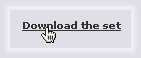
First, you need to put your cursor on "Download the set".
Then, click.
-2-
A window appears and asks you what you want to do with the file.
Click on the "Save this file to disk" button,
then click on OK.

-3-
A new window asks you where you want to save the file. I don't
know how you organize your disk, but I like having an Internet
Downloads folder on my desktop, so I always save my files in
this folder. In any case, double-click on where you want
to save the download (it can be on the desktop, in another
folder, it's up to you...), and then, click on the button "Save".

-4-
A window appears and give you an indication of the time the
download will take.
-5-
Now, if you double-click on your Internet Download, located
on your desktop, you'll see that we have the ATS_Athenia_walls.zip
in our folder. Note that the process would be exactly the same
for floors, and we would have here ATS_Athenia_floors.zip instead.

Next step: we will unzip and
install them in the game.
|
|
|
| How
do I unzip and install the floors and walls I've downloaded? |
|
-1-
Let's go in our Internet Downloads, and double-click on the
item you want to unzip.
-2-
It will automatically open WinZip. Then, select all the items
you want to unzip by clicking once on it (you can select
more than one by clicking with the Shift key pressed). Floors
are FLR files. And click on the Extract button.

Same thing will be done for walls. Walls are WLL files.

Walls and floors always need to be installed in the same folders,
so there's no surprise in the Read-me; you can extract it once
to read it, and then, it's not useful.
-3-
It's now that you install our walls and floors in the game.
For floors, we'll install them in the Floors folder of the game,
located in the GameData folder. Navigate in the files browser;
you can open a folder to see its content by clicking on the
"+" in front of the name of the folder. The Sims is
usually installed in your C:\Programs files\Maxis\The Sims
folder, but it can change. Once you're in the Sims folder, open
the GameData folder by clicking on "+", and then click
on Floors folder. Last, click on the button Extract.

Path: C:\Programs files\Maxis\The Sims\GameData\Floors
For walls, do the same thing, but install them in the Walls
folder:

Path: C:\Programs files\Maxis\The Sims\GameData\Walls
-4-
That's all, now WinZip will unzip the file and install it at
the right place! Congratulations!
|
|
|
| Where
will I find the files I have downloaded? |
| You'll find the walls and floors in the Build
mode, under "Walls" and "Floors". |
|
|
| What
should I do with the .zip files, once I have unzipped them? |
| You can do what you want, actually. Most of the
time, you won't have to use them anymore, so you can delete them,
or make a back-up, whatever you want. |
|
|
|
| Donations |
| |
| |
| |
| |
| |
Newsletter |
|
Search |
| |
| |
| |
| Help
for Mac |
| |
| |
|